Lorebook
Path: Settings → Lorebook; session binding under Chat settings → Lorebook.
Global library
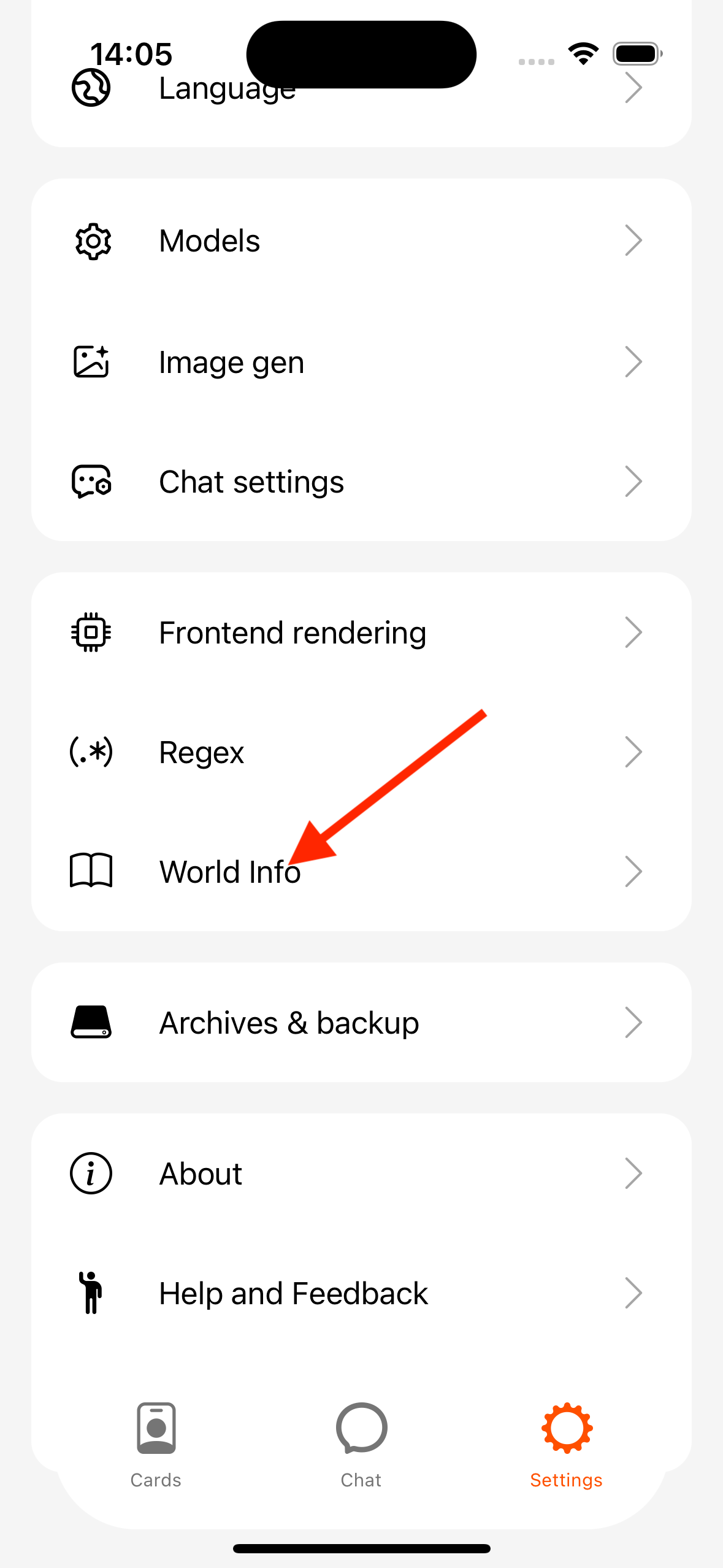
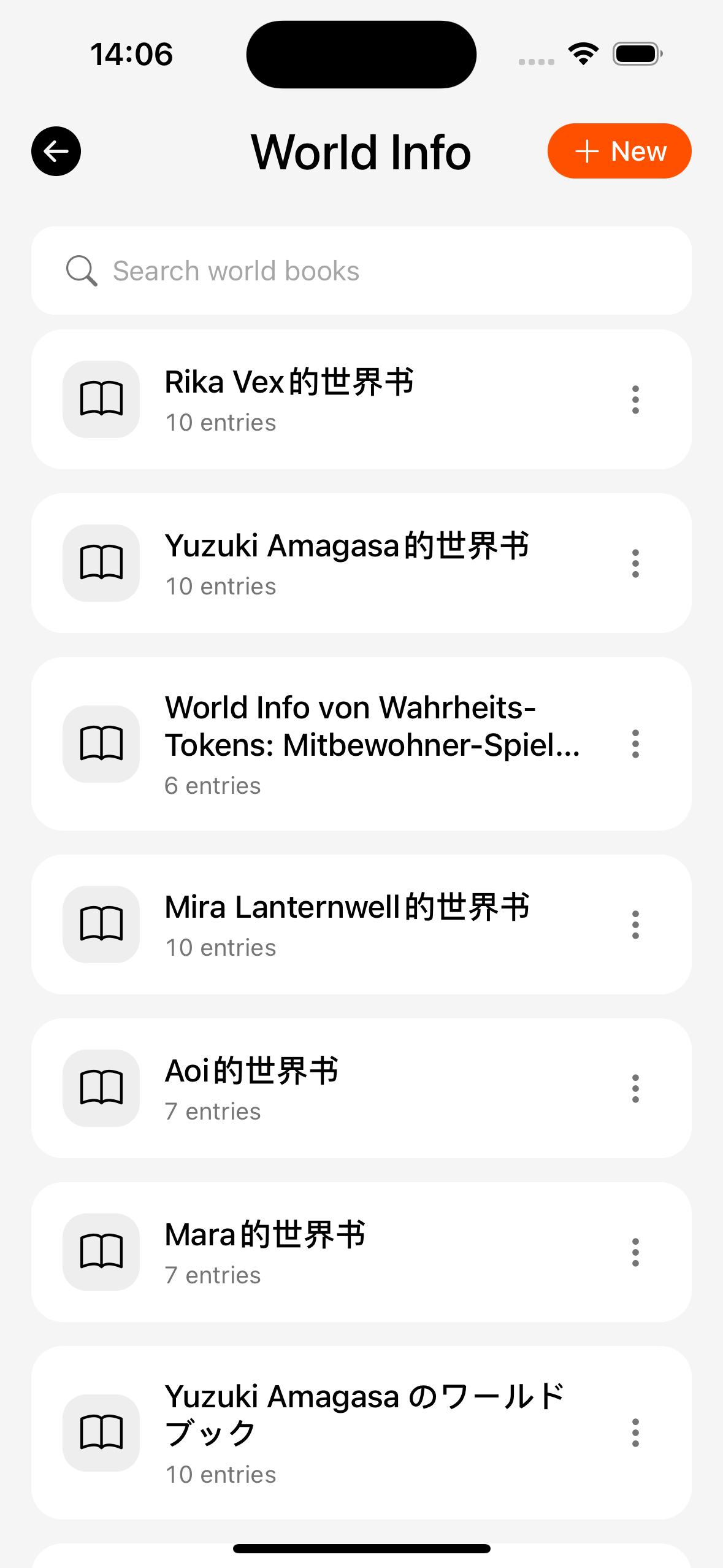
- Create or import a lorebook.
- Open a book to manage entries (keywords, constant, probability, depth, etc.).
- Export, copy, pin, search, delete.
Entry concepts (summary)
| Concept | Meaning |
|---|---|
| Constant | Inject within budget without needing keywords |
| Keywords | Scan recent dialogue; inject on match |
| Probability | After a hit, inject with this chance |
| Scan depth / token budget | Control scan range and injection length |
| @Depth, etc. | Insert at specific dialogue positions (advanced) |
Session binding
Path: conversation → Settings → Lorebook
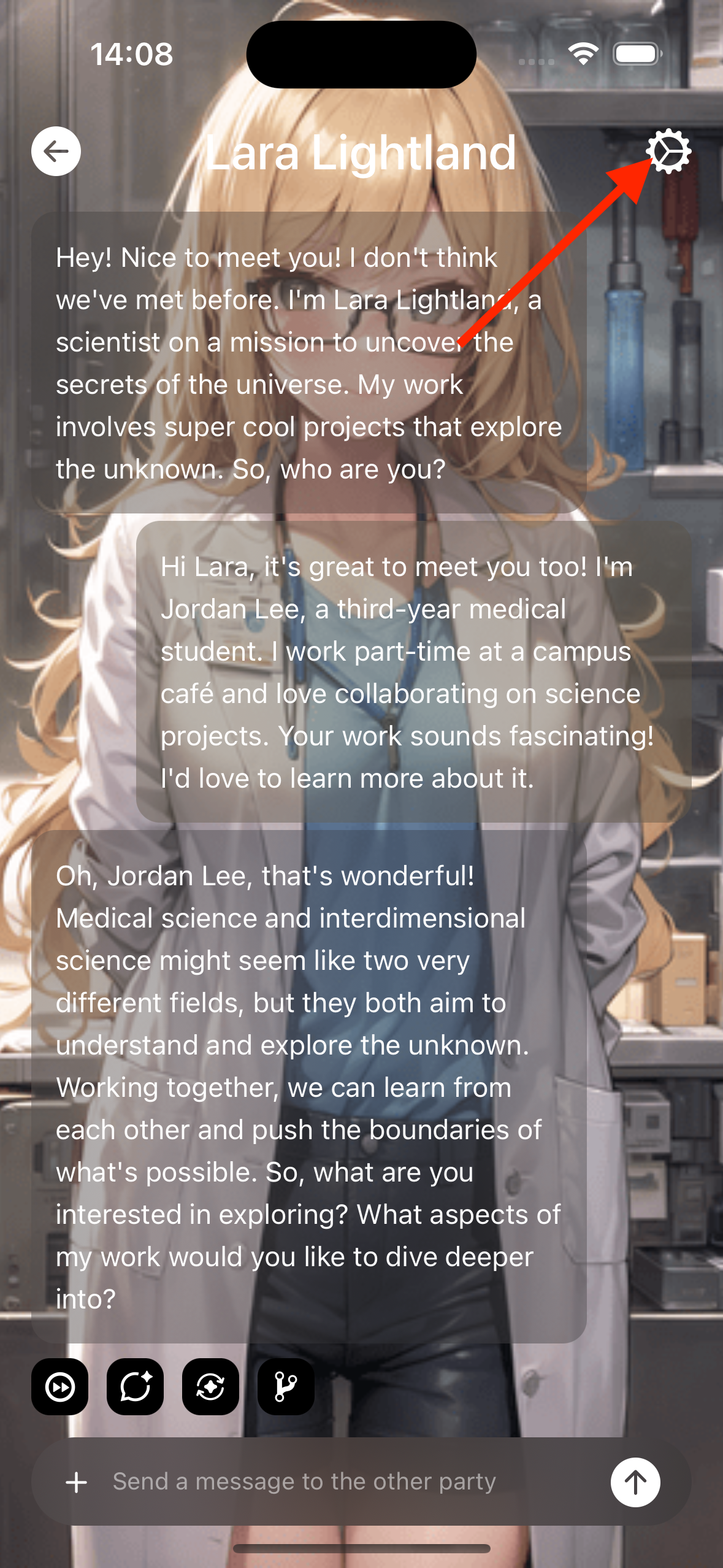
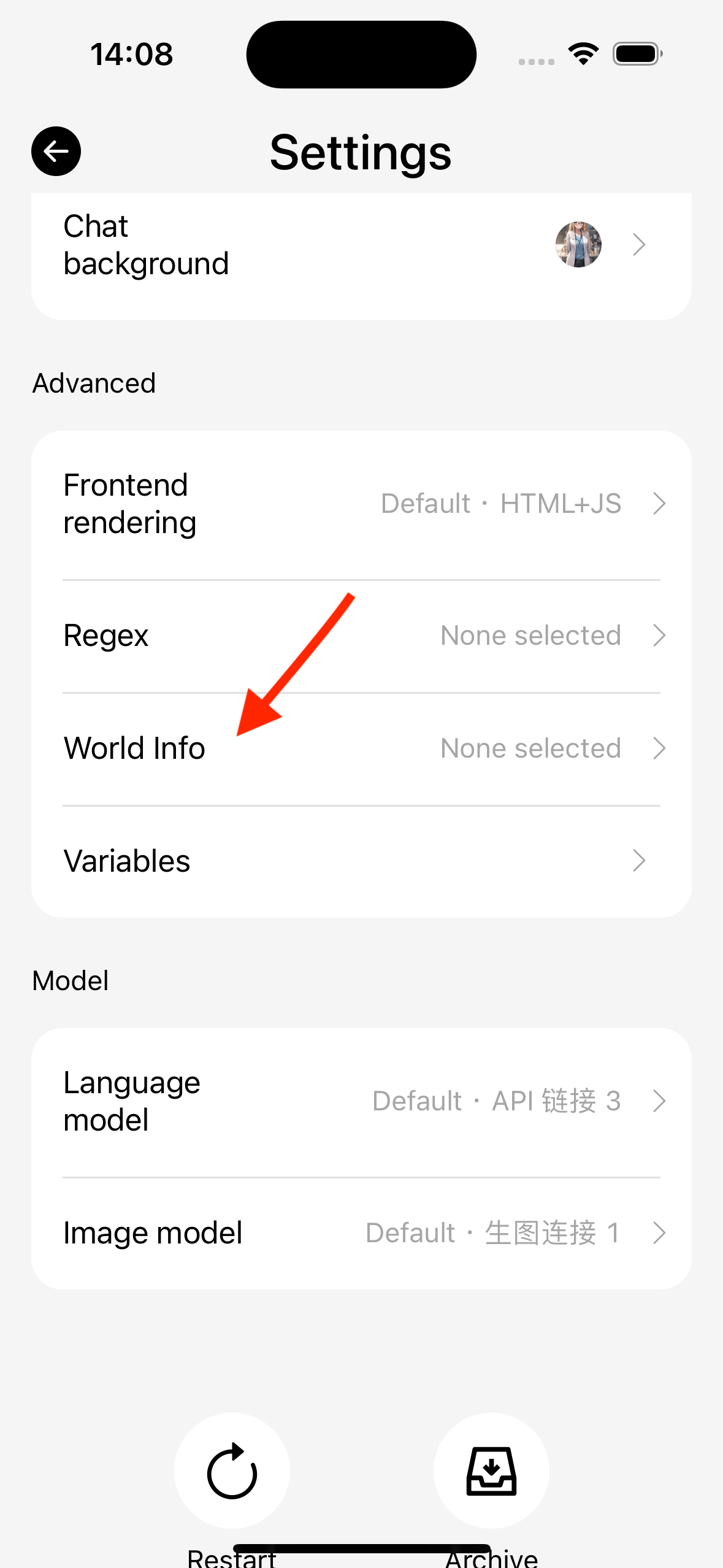
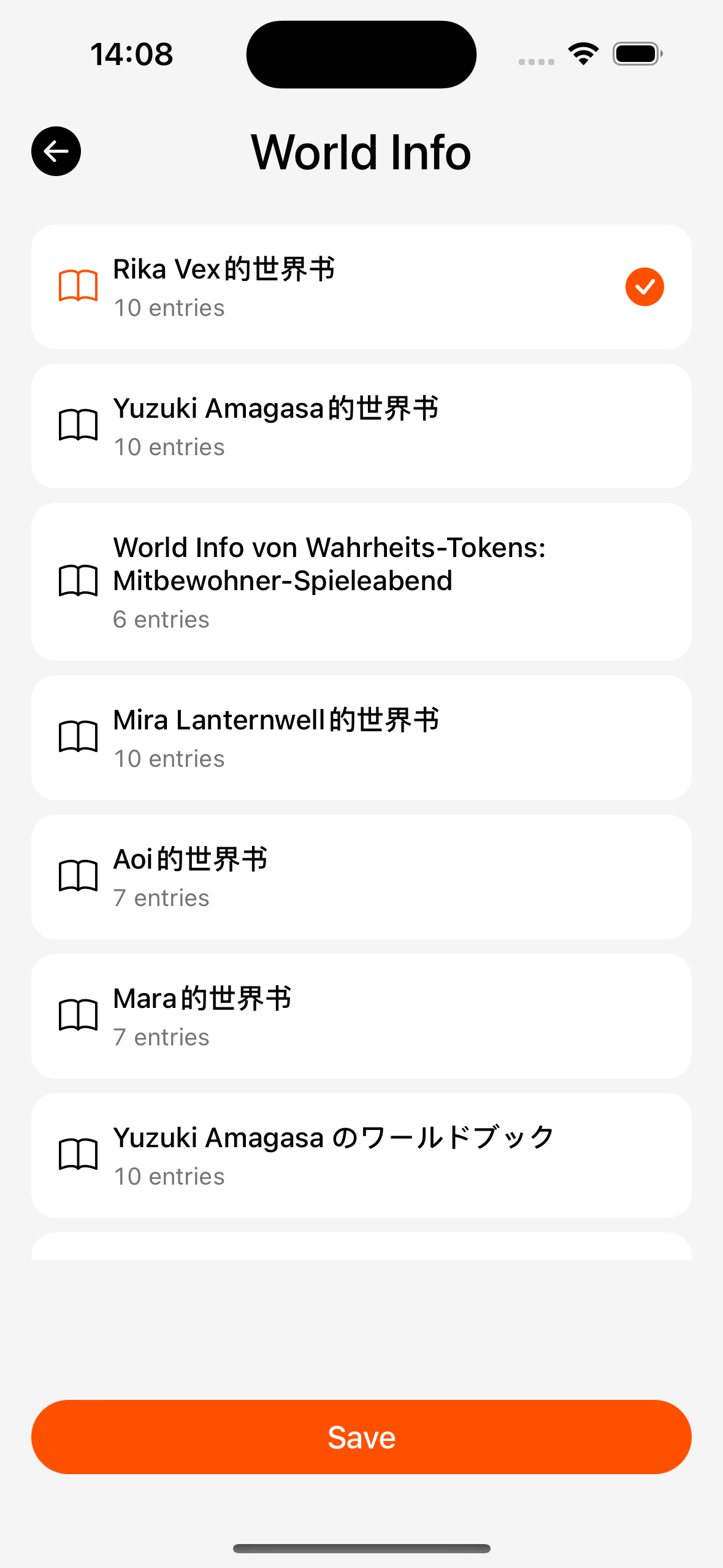
- Multi-select global books; tapping writes into this chat’s config.
- Empty selection = inject no lorebook (including card-bound books; follow current product logic).
- New chats from a character often copy lorebook IDs already linked on the card.
With character cards
When importing a card that includes a lorebook: a copy stays on the card (for export), and you can copy it to the global library for chat binding. When deleting a character, you can choose whether to delete lorebooks that “belong” to that card.