Create with AI
Path: bottom Characters → Create / Import → Create with AI.
Set up a model link and pass Test first. With no usable model, generation stays unavailable and the page points you to setup.
Steps
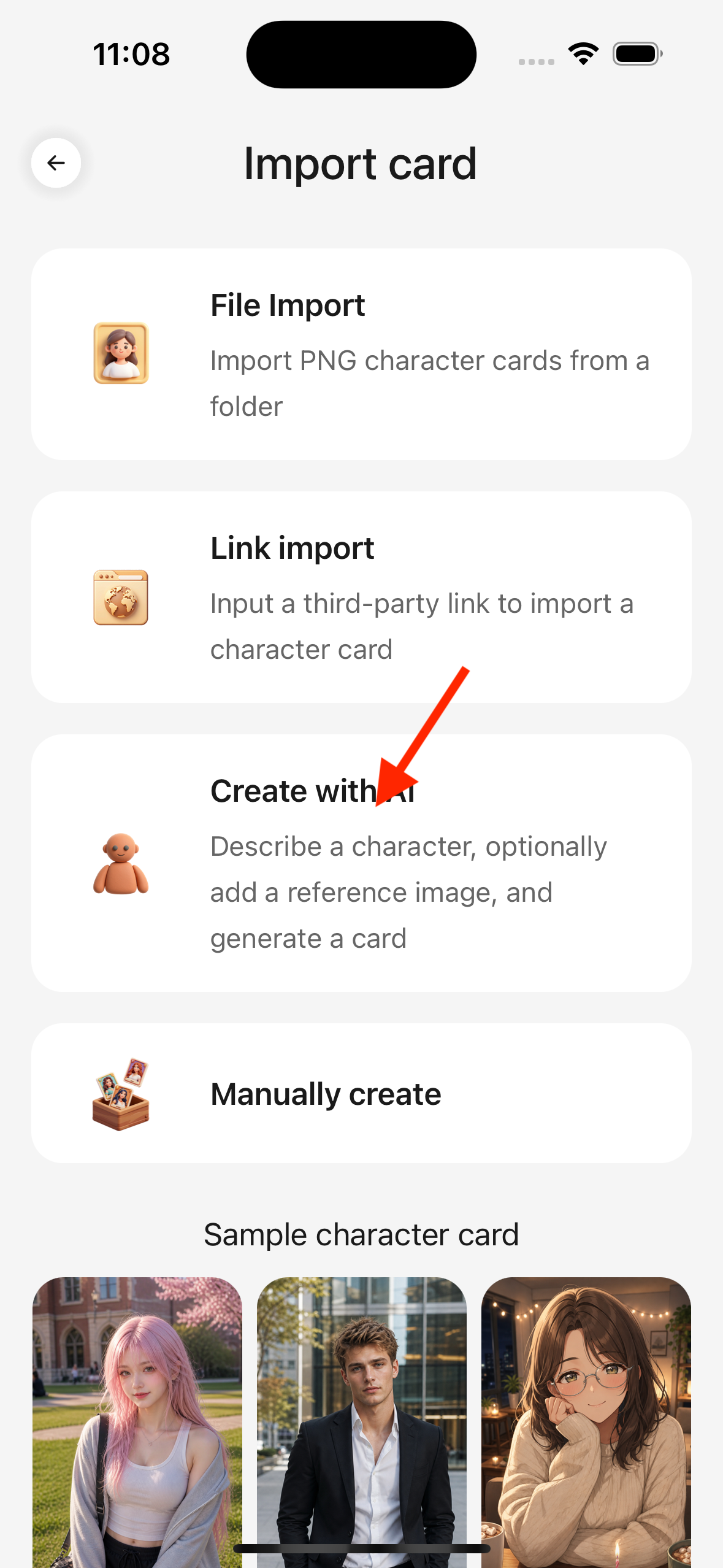
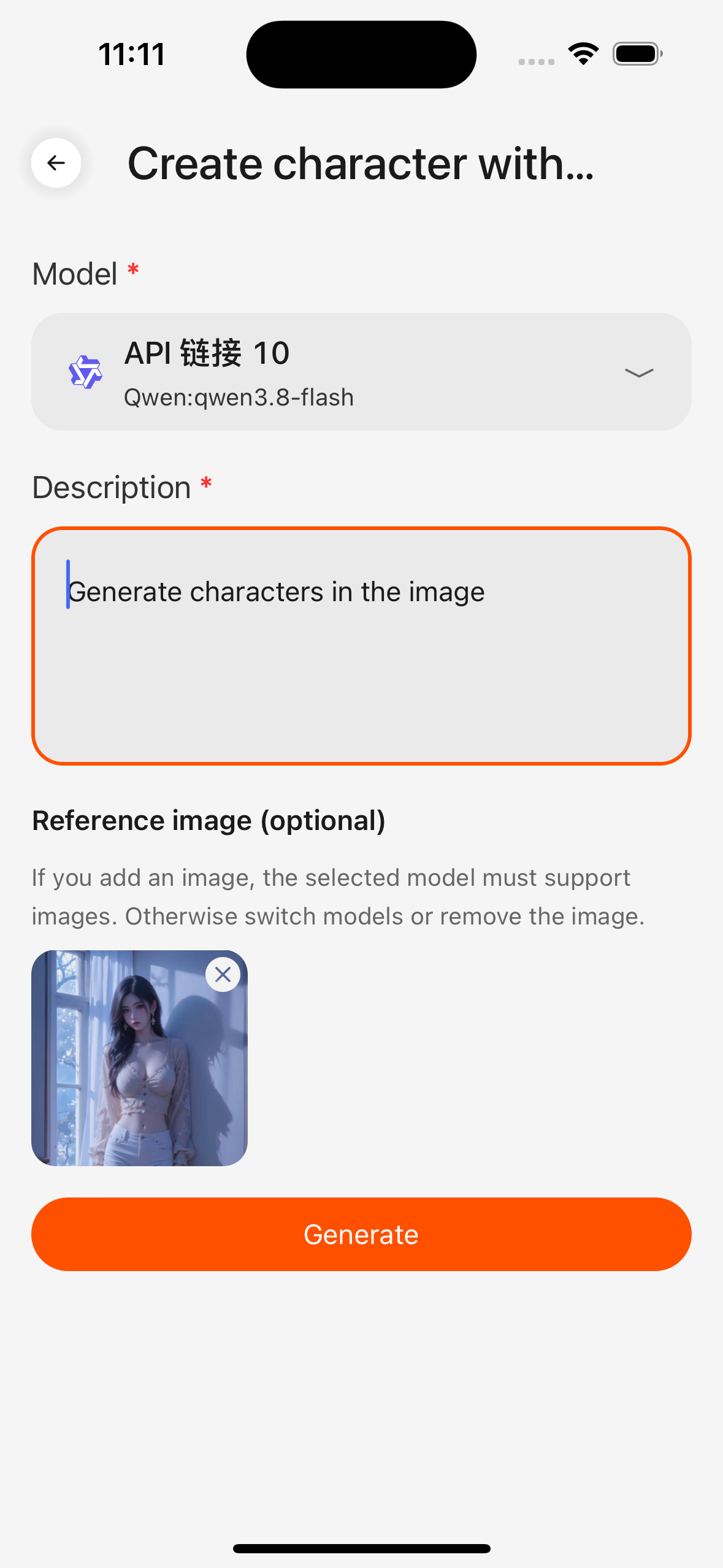
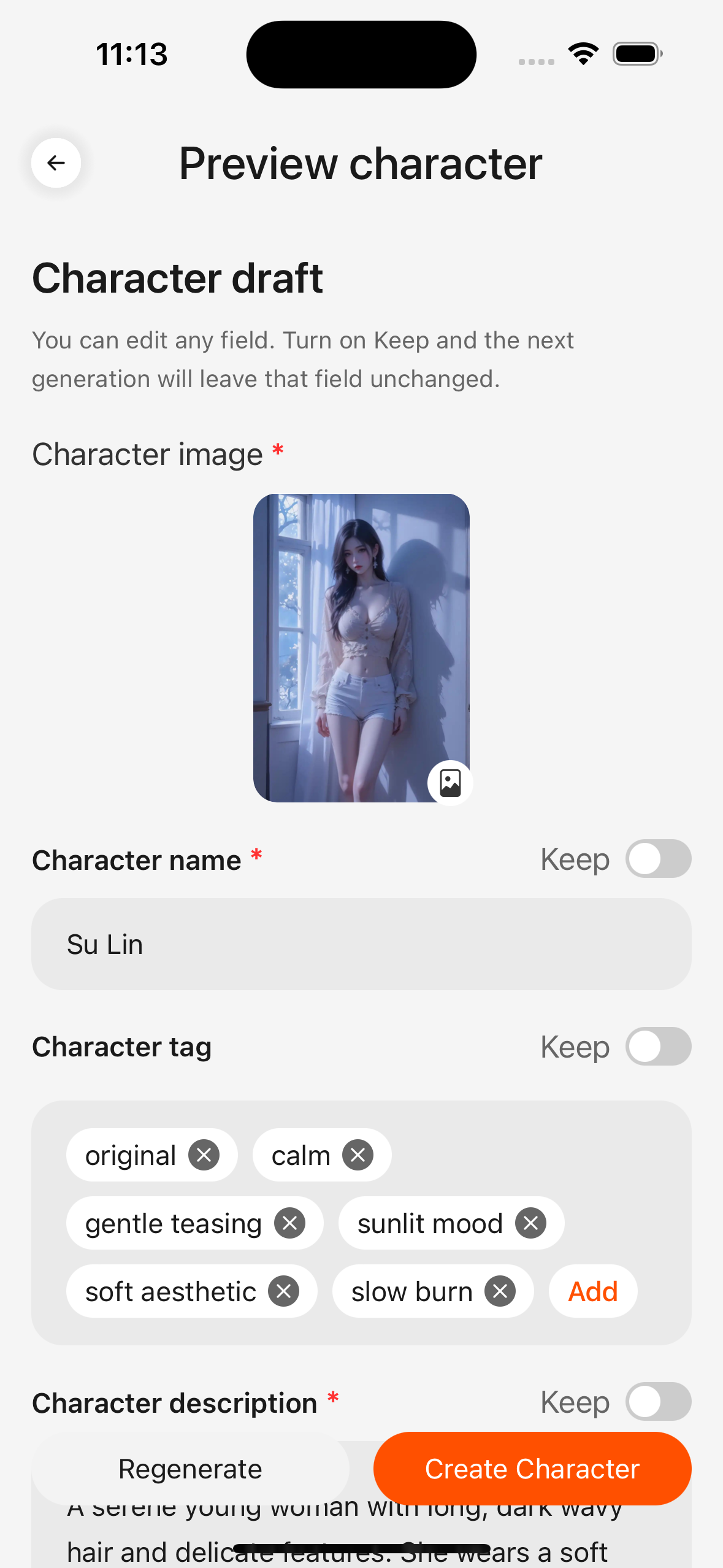
Generate
- Model: pick one of the model links you already configured. The default link is selected first; you can switch.
- Description (required): say what character you want.
- Reference image (optional): tap the image to enlarge it; the close icon at the top right removes it. With an image, the selected model must support images. If it does not, switch models or remove the image.
- Tap Generate. The button shows “Generating”. Model, description, and reference image cannot be changed while it runs.
The reference image lets the model see the character. After the first successful generation it is filled in as the character image. The model does not draw a new picture. Without a reference image, choose an image on the preview before you can create the card.
If generation fails, a message appears. View details shows the reason. Cancelling does not show a failure message.
Preview and Keep
A successful generation opens Preview character. The generate page itself does not show the card.
- Name, description, tags, personality, greetings, world book, and the rest can be edited directly.
- Each AI field, and the whole world book, has Keep. When it is on, the next generation leaves that item unchanged. Editing text does not turn Keep on by itself.
- Regenerate opens a text box first. Write what should change, or leave it empty to generate again from the original description. Fields and the world book with Keep on stay as they are. If everything is kept, no request is sent.
- While generating, Regenerate shows a loading state and Create Character becomes cancel.
- Create Character shows a loading notice, then a success notice. Image, name, and description are required.
- Characters based on anime, film, or other existing works can include a world book. After you create the card, that setting stays on the card and is also copied into a world book chats can use. See Lorebook.
- Leaving the preview before creating discards the draft and returns to the generate page. The reference image stays there.
Related
- Character cards: import, edit, start chats
- Model link: configure the model used to generate